
Look at your keyboard right now. See those worn-out keys? The faded letters on E, T, and A? That’s not just regular wear—that’s you typing the same emails, messages, and templates hundreds of times every single week.
You’ve probably typed “Thanks for reaching out” at least 50 times this month. Your email signature? Copied and pasted so often you could type it in your sleep. That standard meeting invite template? You’re basically a human copy machine at this point.
Here’s the uncomfortable truth: you’re wasting hours every week retyping stuff you’ve already written before. And no, you’re not the only one. Millions of professionals are stuck in this exact same cycle, burning time on repetitive typing when they could be doing literally anything else.
We’ve all been there. You open Gmail to respond to a client. You need to send your standard introduction, but where did you save it? Was it in that old email from March? Or did you put it in Notes? Maybe you saved it somewhere in Slack?
So you do what everyone does—you just retype it. Again. For the 200th time.
Customer support teams answer the same questions daily. Developers copy the same code snippets constantly. Sales teams send similar pitches with minor variations. Content writers use the same phrases repeatedly. Even students type identical assignment headers over and over.
The crazy part? We all know this is inefficient. We know we’re wasting time. But most solutions either don’t work across all apps, require complicated setup, or cost way too much for what they actually do.
That’s exactly what keyboard expanders do. Type a short keyword or abbreviation, and boom—your full text appears instantly. Like autocorrect, except you’re the one who decides what gets expanded and when.
Think about how much faster you could work if:
This isn’t some futuristic concept. Text expansion has been around for years on desktop computers. But on mobile? That’s where things get interesting—and where most people are still stuck typing everything manually.
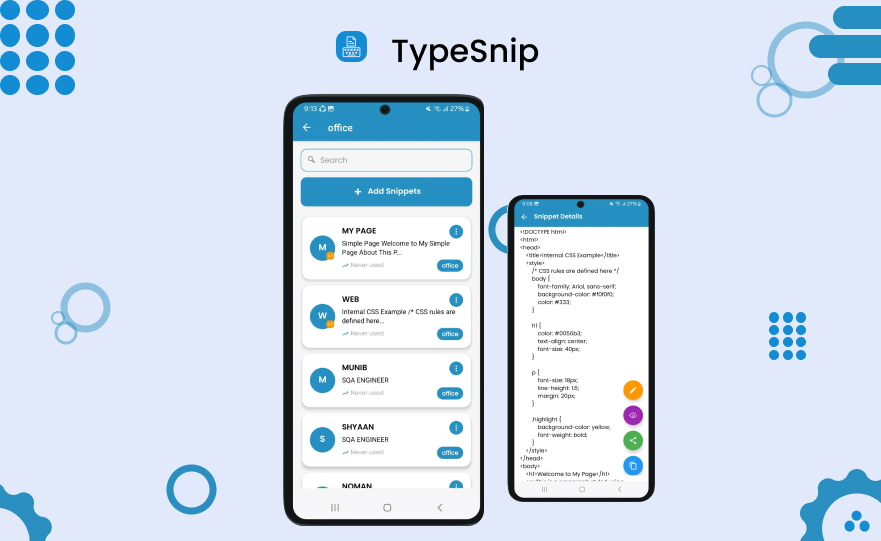
TypeSnip is a keyboard expander app that works across every single app on your phone. Email, messaging apps, social media, note-taking, coding environments—anywhere you type, TypeSnip works.
Here’s what makes it different from those note apps you’ve been using (and let’s be honest, mostly ignoring):
Most text expansion tricks require you to copy from one app and paste into another. TypeSnip? It’s a keyboard. Once you enable it, your snippets are available everywhere without switching apps or breaking your workflow.
Responding to an email in Gmail? Your snippets are there. Chatting in WhatsApp? Snippets available. Writing code in your favorite editor? Yep, still there. Taking notes during a meeting? You get the idea.
Instead of one giant list of snippets you’ll never find anything in, TypeSnip lets you organize everything into folders.
Create a “Work” folder for professional templates. A “Personal” folder for everyday stuff. A “Code” folder for programming snippets. A “Support” folder for customer responses. Whatever structure matches how your brain works.
When you need a snippet, you’re not scrolling through everything you’ve ever saved. You know exactly where to look because you organized it yourself.
You choose the keywords. Short abbreviations, full words, whatever makes sense to you. No confusing default shortcuts you need to memorize.
Want “addr” to expand your address? Done. Prefer “myaddress” instead? That works too. The app adapts to how you think, not the other way around.
Can’t remember if you saved something as “greeting” or “hello” or “intro”? TypeSnip’s smart suggestion feature finds matching snippets as you type. Start typing any part of your keyword, and relevant snippets appear instantly.
This one’s huge for anyone who works with formatted content.
Save HTML and CSS snippets, preview them rendered right inside the app. Need to send formatted email content? Copy your rendered snippet as rich text and paste it into Gmail, Teams, or any app that supports rich content.
Your bold headings stay bold. Your links stay clickable. Your formatting stays intact. No more sending plain text when you need proper formatting.
Moving to a new phone? Share templates with your team? Back up your snippets?
Export everything as JSON or CSV files. Import them back whenever you need. Your snippets travel with you, not stuck on one device forever.
Full swipe left on a snippet? Deleted instantly. Half swipe? Menu appears with options to edit, disable, enable, or copy. Quick actions without hunting through settings menus.
Need to temporarily turn off a snippet without deleting it? Disable it with a swipe. Want it back? Enable it just as fast.
Your snippets stay on your device. Period. No cloud sync unless you export them yourself. No company reading your templates. No mysterious servers storing your private information.
You control your data completely. Export it when you want. Keep it local if you prefer. No forced cloud storage, no surprise privacy policy changes.
TypeSnip starts completely free. No trial period that expires. No credit card required. Just download and start using it.
The free version includes:
That’s it. No ads, no constant upgrade nagging, no features held hostage behind paywalls.
Want more? The Pro version unlocks everything:
The cost? Less than a dollar. One-time payment. Not monthly. Not yearly. Just pay once and you own it forever.
No subscription creep. No “just $4.99 per month” that turns into $60 yearly you forget you’re paying. Pay once, own everything, done.
Honestly? Anyone who types regularly. But some people save way more time than others.
If you send more than ten emails daily, you’re probably retyping the same things constantly. Standard greetings, common closings, frequently asked questions, meeting requests, follow-up templates—TypeSnip turns all of these into quick keywords.
Same questions deserve consistent answers. Instead of typing troubleshooting steps for the 50th time today, save them as snippets. Reply faster, maintain consistency, reduce mistakes from tired retyping.
How many times do you type the same import statements? Function templates? Code boilerplate? Error handling snippets?
Save commonly used code as snippets. Expand them with keywords. Code faster without memorizing everything or constantly copying from old projects.
Different pitches for different situations. Multiple email templates for various stages of your pipeline. Standard responses personalized for each prospect.
Stop starting from scratch every time. Save your best templates, customize quickly, move faster through your outreach.
Phrases you use often. Standard CTAs. Social media templates. Image attribution text. Author bios. Disclosure statements.
Create once, reuse everywhere. Stay consistent without copy-pasting from old posts or retyping from memory.
If you find yourself typing the same things repeatedly—doesn’t matter what industry—TypeSnip saves you hours every week.
Teachers writing similar feedback? Medical professionals documenting common procedures? Lawyers using standard legal phrases? Consultants sending similar proposals? Real estate agents with property descriptions?
Repetitive typing is repetitive typing. TypeSnip fixes it.
Let’s do some realistic calculations.
Imagine you have ten snippets you use regularly:
If you use each snippet just twice daily, that’s 265 seconds saved per day. That’s over 4 minutes saved daily, which becomes 28 minutes weekly, almost 2 hours monthly.
Now imagine you have 50 snippets you use regularly. Or you use them five times daily instead of twice. Or your snippets are longer than 30 seconds to type.
The time savings compound fast.
And that’s not even counting the mental load reduction. No more “where did I save that template?” No more retyping with slight variations that create inconsistencies. No more context switching between apps to copy text.
Just type your keyword and move on.
Here’s the actual process, no fluff:
Step 1: Download TypeSnip
Available on the App Store for iPhone and iPad. Available on Google Play for Android devices. Free to download.
Step 2: Create Your First Snippet
Open the app. Tap the plus button. Enter your snippet text. Assign a keyword. Done. Takes about 20 seconds.
Step 3: Enable the TypeSnip Keyboard
Go to your phone’s keyboard settings. Add TypeSnip keyboard. Switch to it when you want to use snippets.
Step 4: Use Your Snippets Anywhere
Open any app where you type. Switch to TypeSnip keyboard. Type your keyword. Watch it expand automatically.
Step 5: Add More Snippets As You Need Them
Every time you catch yourself typing something you’ve typed before, save it as a snippet instead. Your library builds naturally over time.
That’s it. No complicated setup. No tutorials to watch. No configuration files to edit. Just add snippets and start using them.
“Will this slow down my typing?”
No. TypeSnip keyboard responds just as fast as your default keyboard. Keywords expand instantly. No lag, no delay, no waiting.
“What if I forget my keywords?”
The smart suggestion feature helps you find snippets even when you can’t remember the exact keyword. Start typing anything related, and matching snippets appear.
“Can I sync between my phone and tablet?”
Export your snippets as a file. Import them on your other device. Takes about 30 seconds. Not automatic sync, but it works and keeps your data private.
“Does it work offline?”
Yes. Snippets are stored locally on your device. No internet connection required to use them.
“What about sensitive information like passwords?”
TypeSnip stores everything locally, but storing passwords in any text expansion tool isn’t recommended for security reasons. Use a proper password manager for that.
“Can I share snippets with my team?”
Export your snippets as JSON or CSV. Share the file with teammates. They import it into their TypeSnip app. Everyone has the same templates instantly.
It’s not the fancy features. It’s not even the time savings, though those are real.
It’s the relief of not having to retype the same things over and over like some kind of malfunctioning robot.
It’s opening your email and knowing your standard responses are ready to go. It’s starting a new message without that little moment of “ugh, I need to type this whole thing again.”
It’s the difference between typing being a chore and typing being efficient.
People don’t stick with productivity apps because they’re clever. They stick with them because they make life genuinely easier without requiring constant attention or maintenance.
TypeSnip works in the background. You set up your snippets once. Then you just use them. No daily maintenance. No updates that break everything. No subscription reminders. No features that suddenly disappear.
Just faster typing when you need it.
You could keep doing what you’re doing now.
Copy-pasting from old emails when you remember to save them. Retyping when you forget. Hunting through notes apps for templates you saved three months ago. Starting from scratch when you can’t find anything.
Spending those extra 30 seconds here, 45 seconds there, 2 minutes on this email, 90 seconds on that message. Watching it all add up to hours you’ll never get back.
Or you could type keywords instead.
Your call.
Available now on App Store and Google Play. Free to start. Pro version unlocks everything for less than a dollar.
No subscription. No monthly fees. No complicated setup. Just organized snippets that expand when you need them, across every app where you type.
Your fingers will thank you. Your productivity will improve. And you’ll wonder why you spent years typing the same things over and over when this solution existed the whole time.
Stop typing manually. Start typing smarter.
Frequently Asked Questions
Is TypeSnip free to use?
Yes, TypeSnip offers a free version with 1 folder and 5 snippets, plus all core expansion features. Pro version costs less than $1 for unlimited access.
Does TypeSnip work on both iPhone and Android?
Absolutely! TypeSnip is available on Apple App Store for iOS devices and Google Play Store for Android phones and tablets with full functionality.
Can I use TypeSnip across all my apps?
Yes! Once enabled, TypeSnip keyboard works in every app where you type—email, messaging, social media, notes, coding apps, and more without switching.
Is my data private and secure in TypeSnip?
Your snippets stay stored locally on your device. No cloud sync unless you choose to export. You control your data completely with full privacy guaranteed.
How do I backup my TypeSnip snippets?
Export your snippets as JSON or CSV files anytime. Save these files to your preferred location, share with team members, or import them on new devices easily.