
Look, I’ll be straight with you. Managing a remote team without decent tools? That’s like trying to run a restaurant without a kitchen. I learned this the hard way back in 2020 when everything went sideways and suddenly everyone was working from their couches.
After spending the last few years helping businesses through software development services transitions, I’ve watched teams struggle and succeed with different remote work collaboration tools. Some picks were disasters. Others were game-changers.
So here’s what actually works—not the theory, not the marketing fluff, but the real deal on best collaboration tools for remote teams heading into 2026.
Remote working isn’t about saving office rent anymore. It’s become how businesses function. Your competitor down the street? They’re probably using better collaborative tools for remote working than you are, and it shows in their output.
I’ve seen marketing agencies triple their client load just by switching to smarter online collaboration platforms 2026. Development teams at companies like ours cut project delivery time by 40% with the right setup. The best remote collaboration tools 2026 aren’t luxuries—they’re necessities.
But here’s where people screw up: they grab the flashiest tool without thinking about what their team actually needs. Bad move.
Forget the sales pitches for a second. What matters when you’re picking remote team collaboration tools?
Speed matters. If your team can’t edit documents together without lag or jump on a video call without technical drama, you’re wasting hours every week. Real-time document editing and smooth video conferencing software aren’t optional anymore.
Everything needs to talk to everything else. Your project management platform should connect to your chat app, which should work with your file sharing system. Otherwise you’re copying and pasting all day like it’s 2005.
Nobody has time for complicated. I don’t care how powerful your tool is—if the team needs a training course just to send a message, they won’t use it. Period.
Security isn’t negotiable. One breach and you’re done. Make sure your office collaboration tools have encryption, two-factor authentication, and compliance certifications if you’re in a regulated industry.
Slack changed workplace communication back in 2013 and hasn’t looked back. Yeah, everyone knows about it, but there’s a reason it’s still on top of the team collaboration software game.
The channels system just makes sense. You’ve got #marketing-team for campaigns, #dev-bugs for technical issues, #random for Friday memes. Everything has its place. And when you need to find something someone said six months ago? The search actually works.
Integration is where Slack really shines. Connect it to basically any app you use—Asana, Google Drive, GitHub, whatever. Updates flow right into your channels so you’re not constantly switching apps.
What you get:
What it costs: Free version works for small teams, or $7.25/month per person for the good stuff
Who should use it: Honestly? Almost everyone. It’s one of those team collaboration apps that just works for companies of any size.
If your company runs on Microsoft 365 (and half the business world does), Teams makes too much sense to ignore. It’s baked right into everything you’re already using.
I’ve been on Teams calls with 200+ people and the video quality stayed solid. The screen sharing is smooth. And you can flip over to edit a Word doc or Excel sheet without leaving the app. Everything’s connected, which is exactly what remote work collaboration tools should do.
The collaborative whiteboard apps feature is underrated. Your team can sketch out ideas together in real-time, which beats the hell out of trying to describe concepts over chat.
What you get:
What it costs: Free basic version, or $4/month per person for business features
Who should use it: Anyone already living in Microsoft’s world
Zoom became everyone’s lifeline during lockdown because it just worked when others didn’t. No fancy features, no complications—you click a link, you’re in a meeting. That simplicity matters.
The breakout rooms feature saves my sanity during big meetings. Split your 30-person all-hands into five-person discussion groups, then bring everyone back. It’s like having multiple conference rooms without the real estate costs.
Recording is built-in, which means you can finally stop taking notes during meetings and actually participate. Plus the transcription feature means you can search through hour-long meetings for specific topics.
What you get:
What it costs: Free for 40-minute meetings, or $14.99/month per host for unlimited time
Who should use it: Teams where online meetings and screen sharing happen constantly
Asana turns messy projects into organized workflows. I started using it three years ago and honestly can’t imagine managing projects any other way now.
You can view your projects as lists, boards (kanban style), timelines (Gantt charts), or calendars. Same data, different views depending on what makes sense. The timeline view saved my butt on a complex client project—spotted a resource conflict two weeks before it would’ve become a crisis.
Task dependencies are clutch. Mark what needs to happen before other things can start, and Asana automatically adjusts deadlines when something shifts. No more manually updating 47 related tasks.
What you get:
What it costs: Free basics, $10.99/month per person for Premium features
Who should use it: Project managers who are tired of spreadsheets and chaos
Notion defies easy description. It’s part wiki, part database, part project manager, part note-taker. Basically, it’s whatever you need it to be, which sounds vague but is actually its superpower.
We use Notion at AsappStudio for everything—process documentation, client wikis, project tracking, meeting notes. The pages connect to each other, databases filter and sort themselves, and everything’s searchable. It’s like having a custom-built tool without paying custom-built prices.
The learning curve exists, fair warning. But once you get it, you’ll wonder how you functioned without it. One of those virtual workspace tools that grows with you.
What you get:
What it costs: Free for personal use, $8/month per person for teams
Who should use it: Teams who want flexibility and don’t mind a learning curve
Google Docs changed everything when it launched. Multiple people editing the same document at the same time, seeing each other’s cursors move around? Mind-blowing back then, standard now.
Workspace (they renamed it from G Suite) is still the benchmark for cloud-based collaboration. Docs, Sheets, Slides—they all play together seamlessly. The comment threads keep conversations attached to relevant content instead of lost in email chains.
Storage is generous even on the free tier, which makes it perfect for collaboration apps free options. And since basically everyone already has a Google account, there’s zero onboarding friction.
What you get:
What it costs: Free for personal, $6/month per person for business features
Who should use it: Startups and small businesses watching their budgets
Monday.com wins the “prettiest project management platform” award, but it’s not just looks. The visual approach actually makes complex projects easier to grasp at a glance.
Everything’s color-coded by status. Overdue tasks scream red. Completed stuff glows green. At-risk items show yellow. You can see project health instantly without reading through status reports.
The automation builder is ridiculously powerful once you get into it. “When status changes to done, notify the manager and create a follow-up task” type stuff. Set it once, forget it forever.
What you get:
What it costs: Free trial available, $8/month per person (minimum 3 seats) for basic plan
Who should use it: Visual thinkers who like seeing the big picture
Miro brings back the whiteboard experience without the dry erase marker smell. Brainstorming sessions that used to require everyone in a conference room? Now they happen across three continents and four time zones.
The canvas is literally infinite. Never run out of space again. And the template library has everything—retrospective formats, design thinking frameworks, mind maps, flowcharts, wireframes. Over 2,000 options.
Video chat is built right in, so you’re seeing faces while collaborating. And the voting feature makes decision-making democratic during workshops.
What you get:
What it costs: Free plan available, $8/month per person for team features
Who should use it: Creative teams, designers, anyone running workshops
Trello is the opposite of complicated, which is exactly why it works. Cards move across boards. That’s it. That’s the whole concept. And somehow it’s perfect for thousands of use cases.
Create a card for each task. Move it from “To Do” to “In Progress” to “Done.” Add details, attach files, set deadlines, assign people. No PhD required. Your team will figure it out in literally five minutes.
Power-Ups add functionality when you need it—calendar views, timeline features, integration with other apps. But the core stays simple, which is why Trello remains one of the best remote working tools for straightforward task tracking software.
What you get:
What it costs: Free version covers most needs, $5/month per person for Premium
Who should use it: Small teams who want simple, visual task management
ClickUp literally markets itself as “One app to replace them all,” and they’re not exaggerating by much. It combines project management, docs, chat, goals, email—basically every category of collaborative platforms examples into one interface.
The customization is almost overwhelming at first. Custom fields, custom statuses, custom views, custom workflows. But once you dial it in for how your team works, it’s powerful. Really powerful.
Time tracking is native. Chat is built in. You can even record and send video messages inside the app. Trying to consolidate your tool stack? ClickUp might actually let you do it.
What you get:
What it costs: Free forever plan available, $7/month per person for Unlimited plan
Who should use it: Teams tired of juggling ten different apps
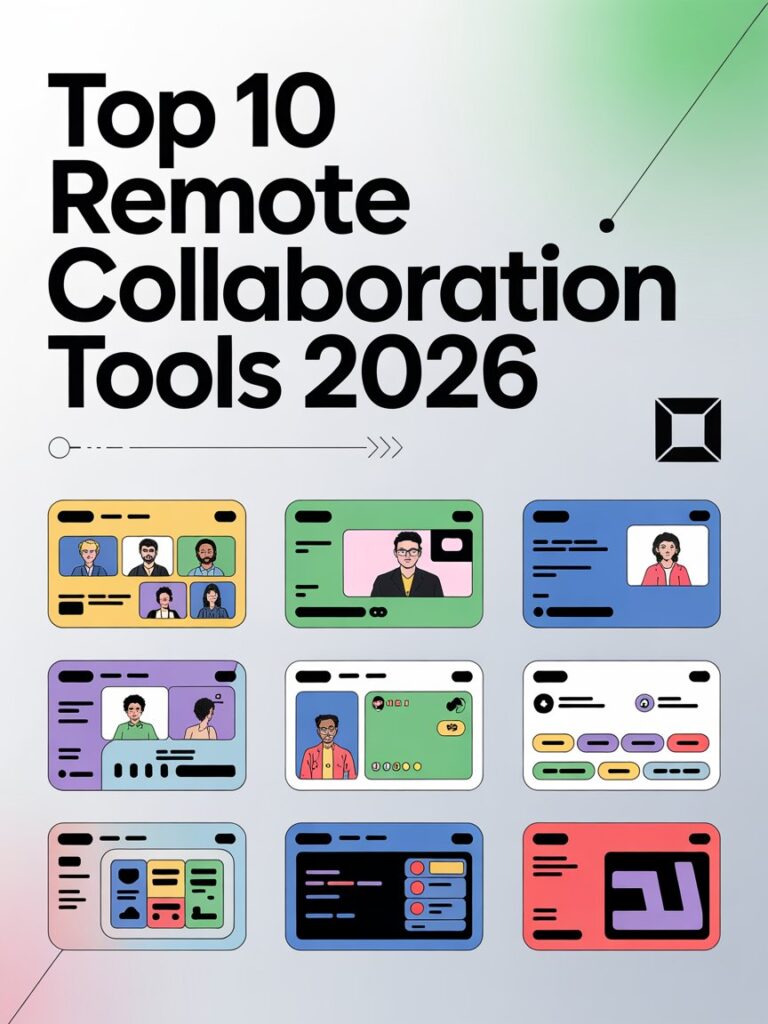
Budget constraints real? These top 10 remote collaboration tools 2026 free options will get you surprisingly far:
Slack free gives you 10,000 searchable messages and 10 app connections. For a five-person startup, that’s plenty to start with.
Google Workspace free includes full Docs, Sheets, and Slides access plus 15GB storage. Hard to beat for collaboration apps free options.
Trello free gets you unlimited cards and 10 boards per workspace. Basic project tracking without spending a dime.
ClickUp free forever actually includes unlimited tasks and unlimited members. Seriously generous for remote team tools that cost nothing.
Here’s what nobody tells you: there is no universal “best” tool. What works for a 500-person enterprise will suffocate a 5-person agency. What makes sense for developers might confuse marketers.
What problem are you actually solving? Communication breakdown? Pick Slack or Teams. Project chaos? Asana or Monday. Document collaboration? Google Workspace or Notion.
What can you realistically spend? The collaboration apps free tiers work fine for small teams. Scale up as you grow and have budget.
What already lives in your tech stack? Integration matters more than features. A decent tool that connects to everything beats an amazing tool that exists in isolation.
How technical is your crew? Match the tool to your team’s comfort level. Power features don’t matter if nobody uses them.
The remote working tools landscape keeps shifting. Here’s what’s actually happening now:
AI is everywhere. Smart scheduling, automatic summaries, predictive analytics—artificial intelligence is baked into remote work productivity tools now. Our AI development services help companies implement these features into their workflows.
VR collaboration tools are real. Virtual reality meetings where avatars interact in 3D spaces? Not science fiction anymore. Companies are using them today.
Asynchronous collaboration tools matter more. Not everyone works 9-to-5 anymore. Tools built for different time zones and flexible schedules are winning.
Security got serious. Zero-trust architecture, end-to-end encryption, advanced threat detection—these used to be enterprise-only features. Now they’re standard.
Understanding different types of online collaboration tools examples helps you build a complete stack:
Communication platforms like Slack and Teams replace the office hallway. Quick questions, team updates, random conversations—all in channels and DMs.
Project management platforms like Asana and Monday organize work. Who’s doing what by when? These tools answer that question.
Video conferencing software like Zoom and Teams handles face-time. Screen sharing, recording, breakout rooms—all the meeting essentials.
Document collaboration like Google Workspace and Notion enables simultaneous editing. Multiple people working on the same thing at the same time.
Task tracking software like Trello and ClickUp monitors individual assignments. Personal to-do lists that connect to team projects.
Implementing new best remote working tools? Learn from others’ mistakes:
Start with one tool. Don’t overhaul everything at once. Pick one problem, solve it with one tool, nail the implementation, then move to the next.
Training isn’t optional. Set up sessions. Record tutorials. Create documentation. At AsappStudio, we learned that proper training is the difference between adoption and abandonment.
Actually listen to feedback. Your team uses these tools daily. They know what works and what doesn’t. Adjust based on their input.
Set clear usage rules. When do we use chat versus email? What goes in the project manager versus the doc editor? Ambiguity creates confusion.
Tools enable productivity, but they don’t create it. Here’s what actually works:
Define communication expectations. Response time requirements. When to use which channel. What qualifies as urgent. Clarity eliminates anxiety.
Respect boundaries. Always-on culture burns people out. Set working hours. Respect time zones. Don’t expect instant responses to non-urgent requests.
Regular check-ins matter. Daily standups or weekly one-on-ones keep everyone aligned. Remote doesn’t mean isolated.
Celebrate wins publicly. Remote work feels disconnected sometimes. Make space to acknowledge achievements and strengthen team bonds.
Remote work isn’t a pandemic thing anymore—it’s permanent. Companies winning at distributed teams management invest in proper team collaboration software and build intentional remote cultures.
The best remote collaboration tools 2026 offers form the foundation of modern work. Whether you’re building apps through our mobile app development services or managing global teams, the right tools determine success.
I’ve spent years in the remote work trenches. The teams that thrive aren’t the ones with the most expensive remote team tools 2026—they’re the ones who choose online collaboration platforms that fit their needs and use them consistently.
Start small. Pick one or two tools from this list. Actually use them properly. Build processes around them. Then expand when it makes sense.
You don’t need all ten of these tools. You need the right tools for your specific situation. These collaborative tools for remote working should connect your team, not complicate their lives.
The technology exists. The blueprint is here. Now you just need to take action and build something that works for your team.
What are the best collaboration tools for remote teams in 2026? Top picks include Slack for team communication, Zoom for video meetings, Asana for project management, Google Workspace for document work, and Notion for flexible knowledge management and workflows.
Are there free collaboration tools for remote teams? Yes! Free options include Slack (limited history), Google Workspace (15GB storage), Trello (unlimited cards), Microsoft Teams (basic features), and ClickUp (unlimited tasks), perfect for bootstrapped teams.
How do I choose remote team collaboration tools? Evaluate team size, budget, main problems you’re solving, existing software you use, and technical skill levels. Test free trials before buying. Match tools to actual needs, not marketing hype.
What makes effective remote work collaboration tools? Essential features: real-time collaboration, easy-to-use interface, strong security, smooth integrations, reliable video calls, cloud file sharing, and mobile accessibility for work anywhere scenarios.Can small businesses afford remote collaboration technology? Absolutely! Many tools offer free tiers or low-cost plans ($5-10/user monthly). Google Workspace, Slack, and Trello deliver serious value without breaking small business budgets.